
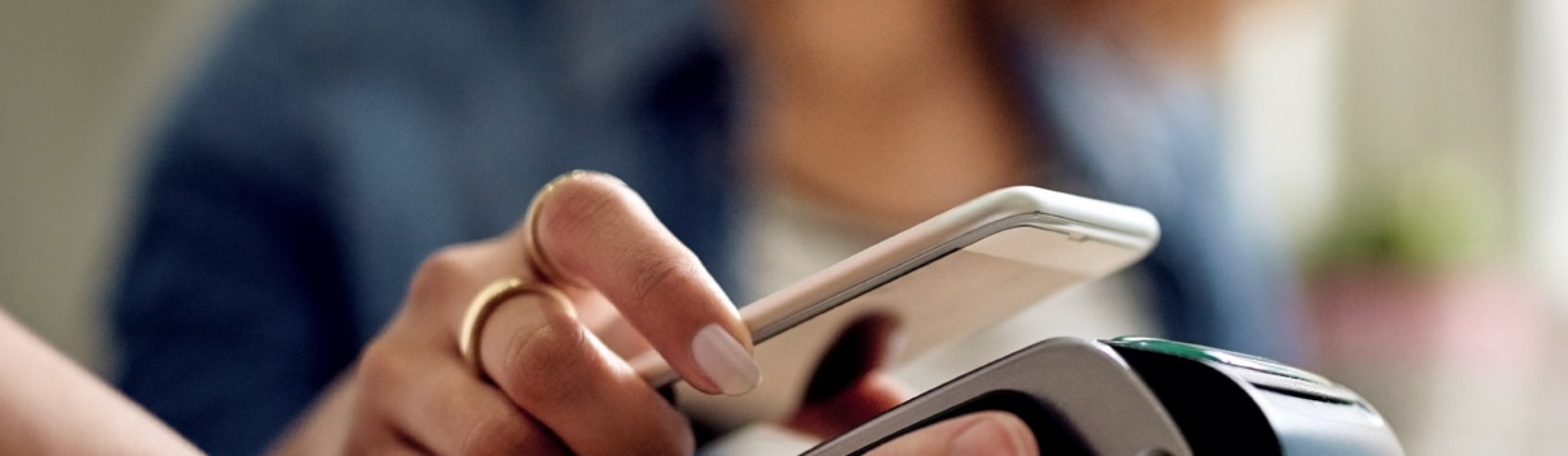
Is The Groton Bank Online App Safe to Use?
At the First National Bank of Groton, we are committed to protecting the confidentiality of your personal information and safeguarding of your data. Our service allows you – and only you – to access your accounts from your mobile phone.
The Groton Bank Online app uses the same security protocols as Groton Bank Online for your browser, such as HTTPS, 128-bit SSL encryption to ensure that all traffic is encrypted, session authentication, password timeout, and multifactor authentication.
We begin with a secure registration process and continue to protect you through the life cycle of each mobile transaction. This includes the following:
- Encryption: Data is encrypted both while moving (in transit) and when stored (at rest).
- Mandatory 2FA: Two-factor authentication is required for all users, supporting device-level, app-based, sms codes, or security keys.
- Passkeys: Supports biometric authentication (fingerprint/facial recognition) as a secure 2FA option.
What Should I do to Keep My Device Secure?
-
Enable Biometric Authentication: Use Face ID, Touch ID, or fingerprint scanning as your primary login method. Biometrics are significantly more secure than patterns or simple PINs.
-
Activate Multi-Factor Authentication (MFA)/Two-Factor Authentication (2FA): Always enable MFA/2FA where available. This ensures that even if someone discovers your password, they cannot access your account without a second form of verification, such as a code sent to your trusted device.
-
Utilize "Stolen Device Protection": If you use an iPhone or Android, enable built-in features like Stolen Device Protection (iOS) or Theft Detection Lock (Android). these use AI and sensors to automatically lock your device if it is snatched from your hand or moved unexpectedly.
-
Set Up Real-Time Alerts: Use the Groton Bank Online app to enable push notifications for all transactions. Immediate alerts allow you to spot and report unauthorized activity the moment it happens.
-
Keep Software Current: Enable automatic updates for both your phone’s operating system and the Groton Bank mobile app. Updates frequently include critical security patches that protect against the latest malware and exploits.
-
Avoid Public Wi-Fi for Banking: Never access your financial accounts on public or "free" Wi-Fi (like those in coffee shops or airports). Use your mobile data plan or a trusted Virtual Private Network (VPN) to ensure your connection is encrypted.
-
Use a Mobile Password Manager: Instead of saving passwords in your mobile browser, use a dedicated, encrypted password manager to generate and store unique, complex passwords for every account.
- Set Up Device Tracking Apps: Set up "Find My" (iOS) or "Find Hub" (Android) from another computer or phone to immediately locate, lock or wipe a device if it has been lost or stolen.
What Should I Do if My Device is Lost or Stolen?
-
Remotely Lock Your Device: Use "Find My" (iOS) or "Find Hub" (Android) from another computer or phone to immediately lock your device and display a contact message on the screen.
-
Contact Groton Bank Immediately: Call us at 607-898-5871 during business hours. To report a lost or stolen debit card you may do so within the Groton Bank Online app or call us at the above number. After hours please call 1-888-297-3416.
-
Disable Mobile Payments: If you use Apple Pay, Google Pay, or Samsung Pay, log into your cloud account (Apple ID or Google Account) to remotely remove your cards from the lost device.
-
Notify Your Mobile Carrier: Contact your service provider to suspend your line. This prevents thieves from receiving SMS-based verification codes or making calls in your name.
-
Perform a Remote Wipe: If you are certain the device cannot be recovered, use your device’s "Find My" service to remotely erase all data and protect your personal information.